Media assets. Colors. Frames. And more...
Customizing your project with media assets, color palettes, frames, and other design tools helps you enhance its visual appeal, express your creativity, and make your work stand out beautifully. This tutorial will guide you through each step, showing you how to use these features effectively to bring your ideas to life.
Media Assets
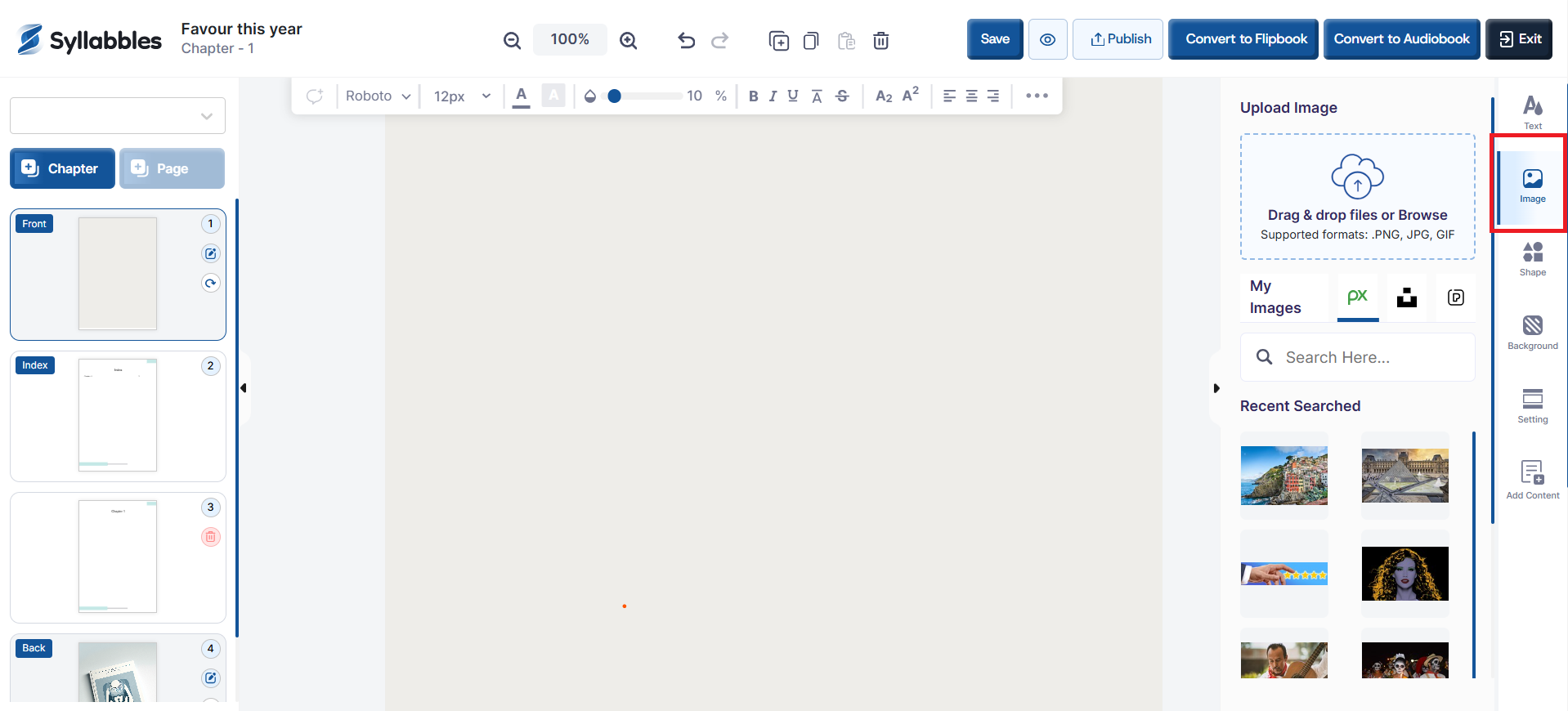
To add an image to your project, click on the Image button at the right panel
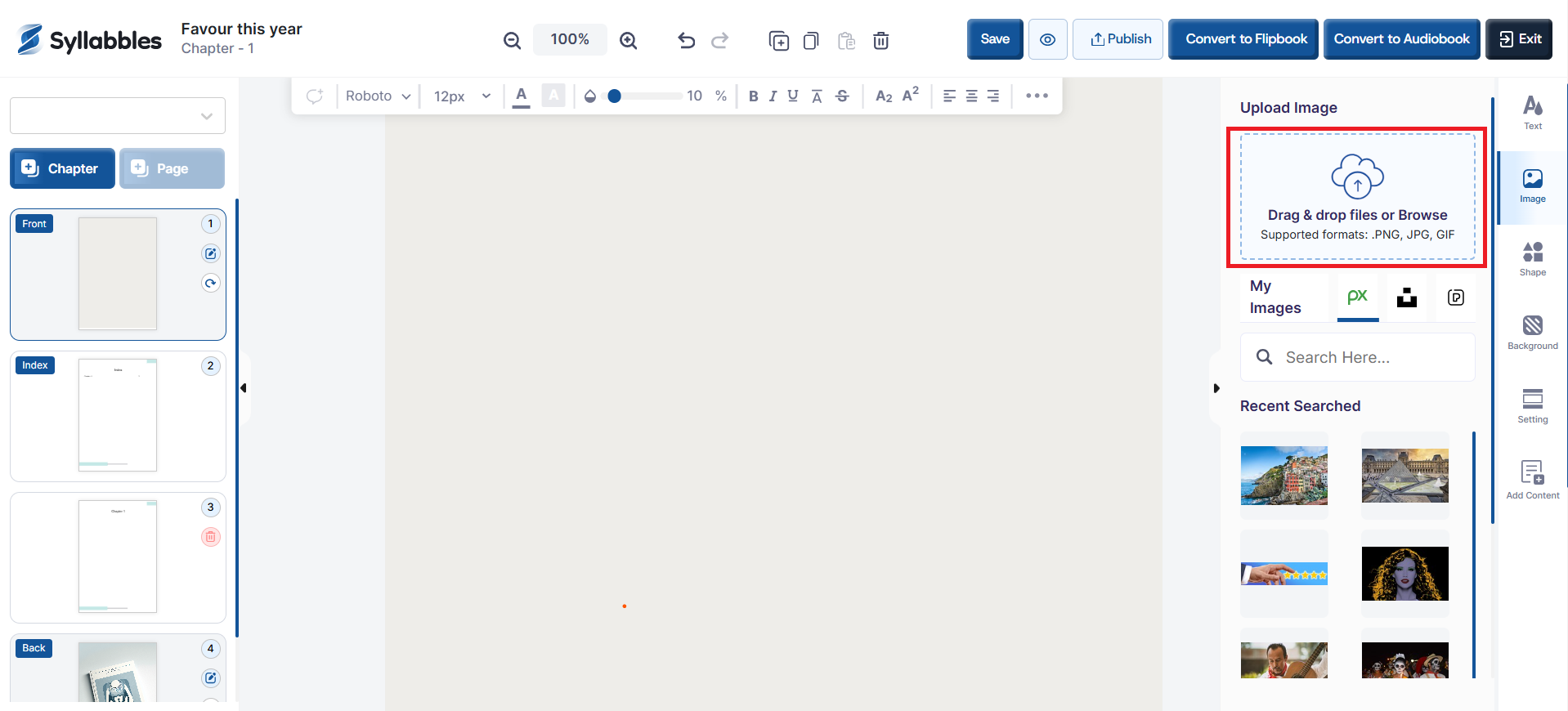
You can upload your own images by dragging and dropping them into the upload box, or by clicking the box to access files from your device.
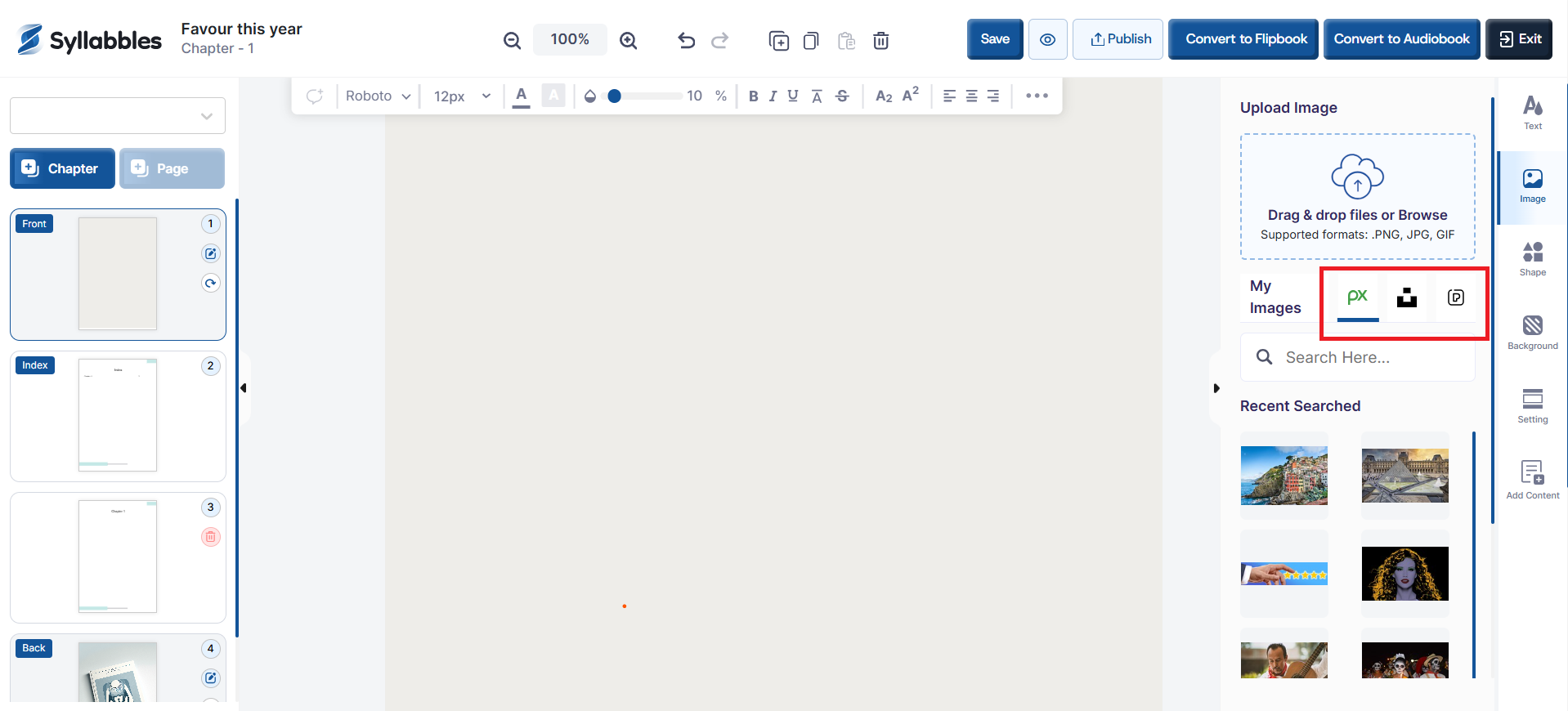
OR choose from free stock image sources like Pexels, Unsplash, or Pixabay (as shown by their icons).
Use the search bar to find specific images, then click on an image to insert it into your page.
Adjust its size or position directly on your canvas.
Frames and Shapes
Use shapes and frames to organize your layout or add creative elements to your design.
Click the Shape button on the right panel.
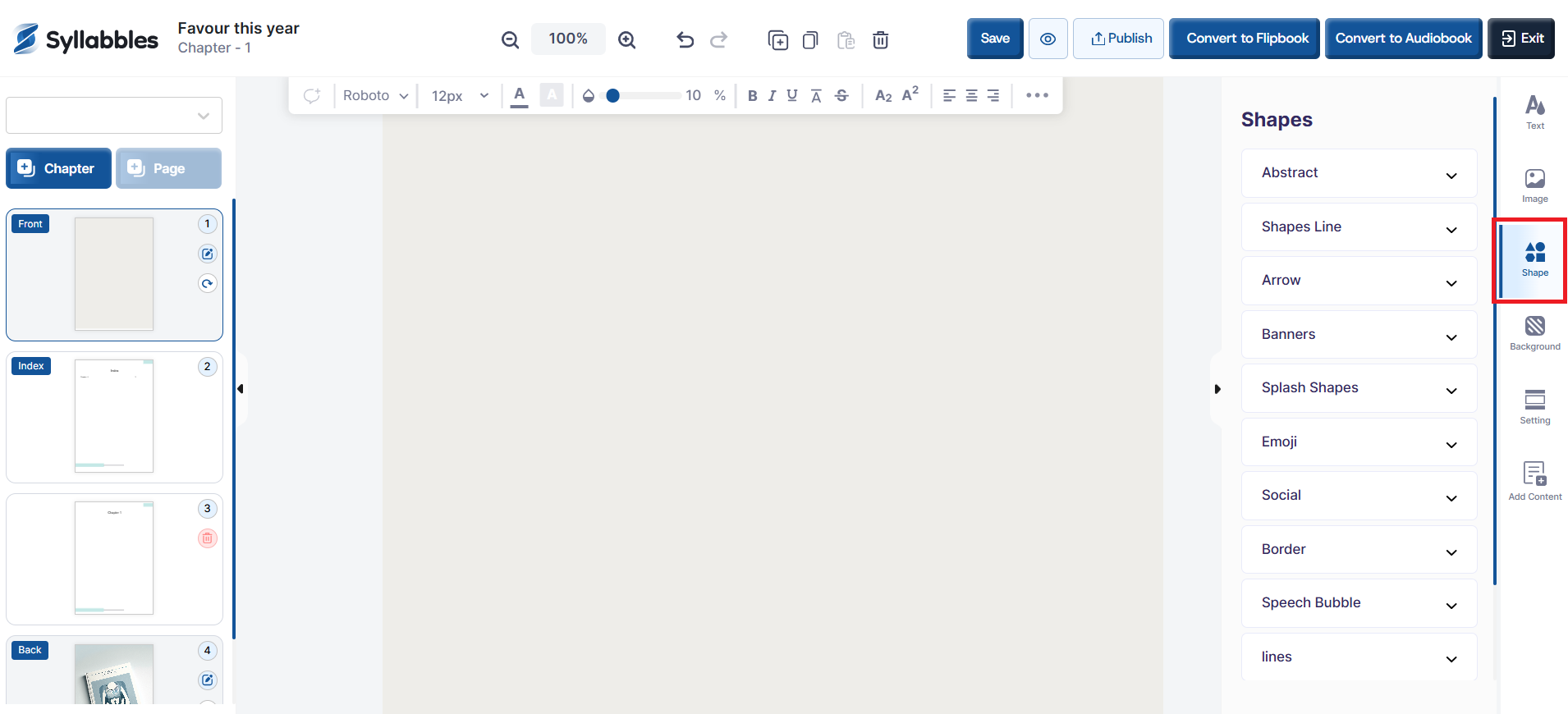
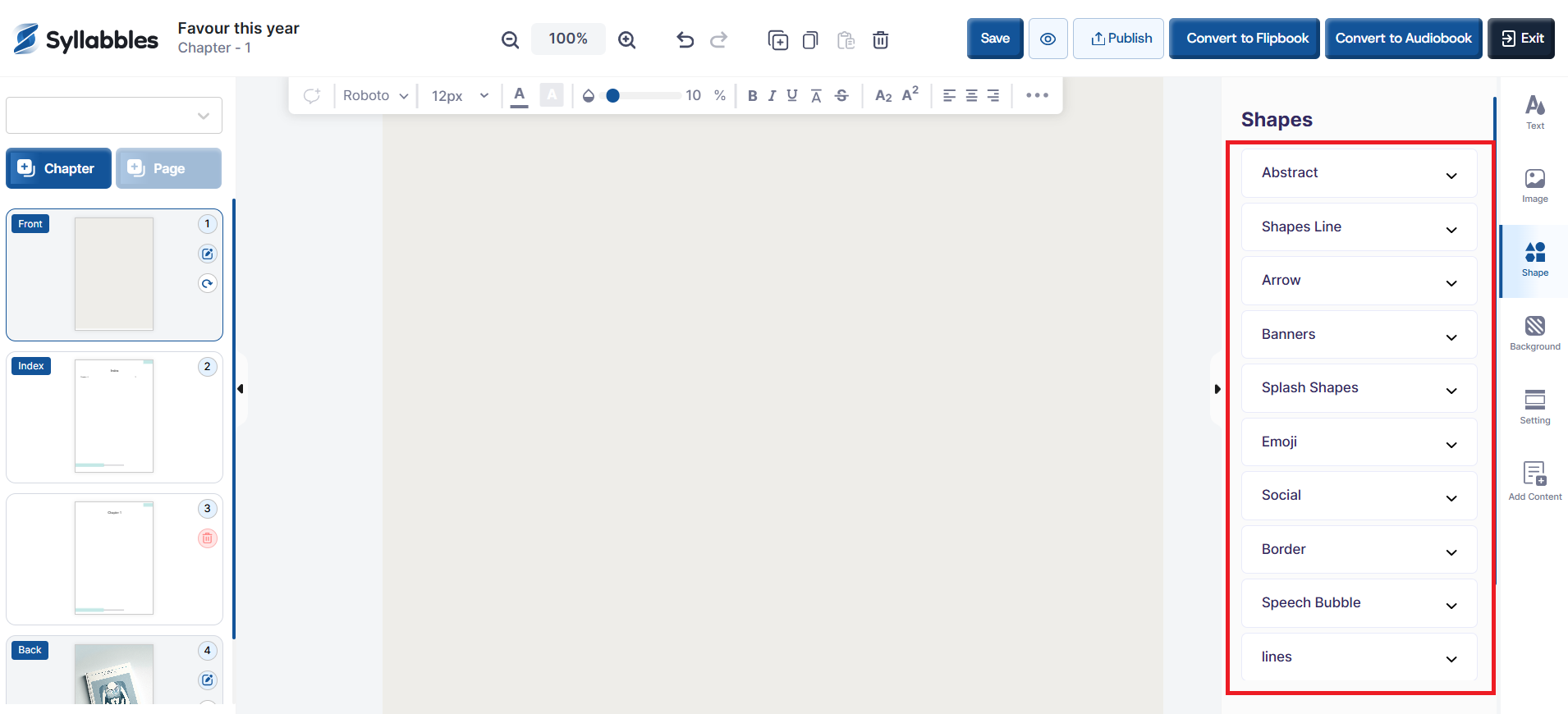
You’ll see different types of shapes like arrows, banners, borders, bubbles, and lines.
Click on any shape to add it to your page.
You can move, turn, or resize it to fit your design.
Colors and Background
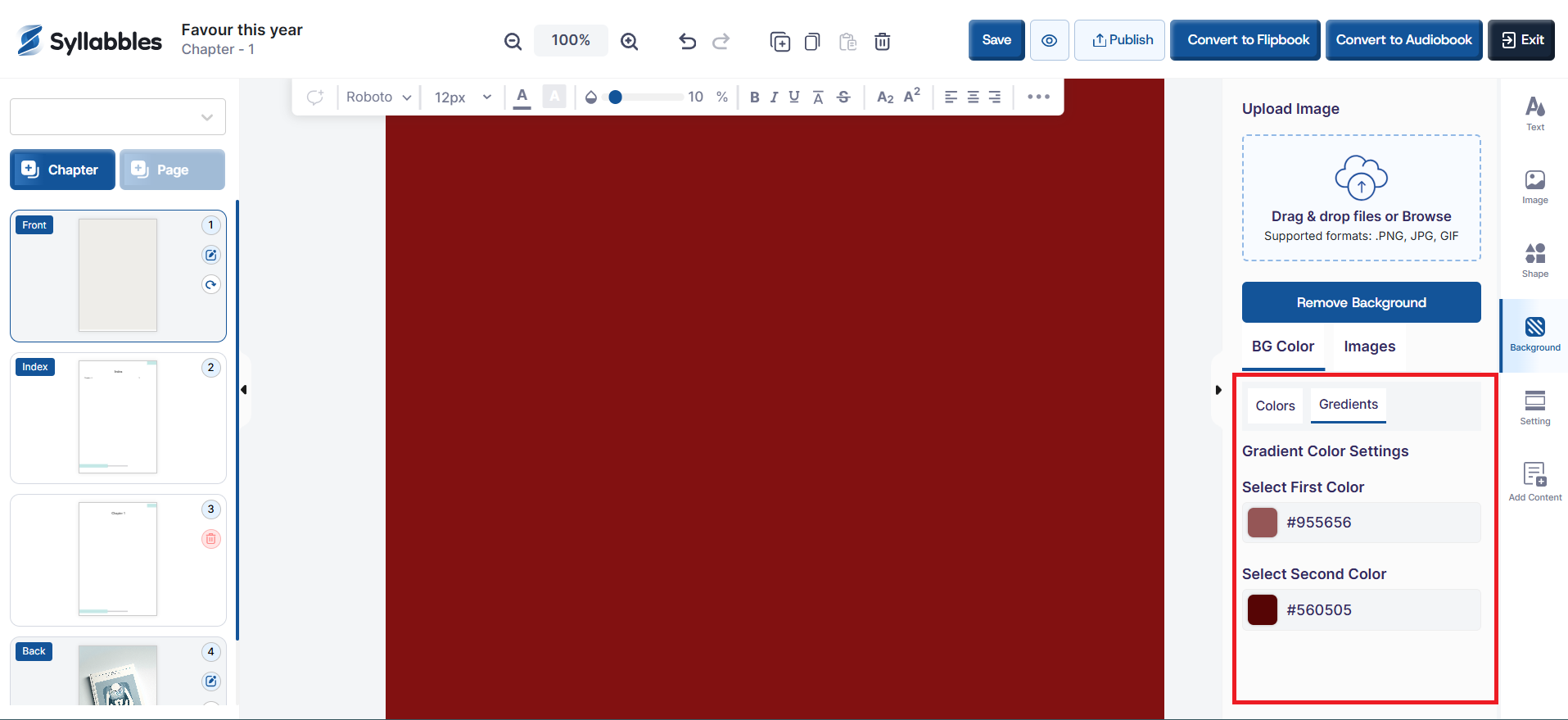
Click the Background button on the right panel
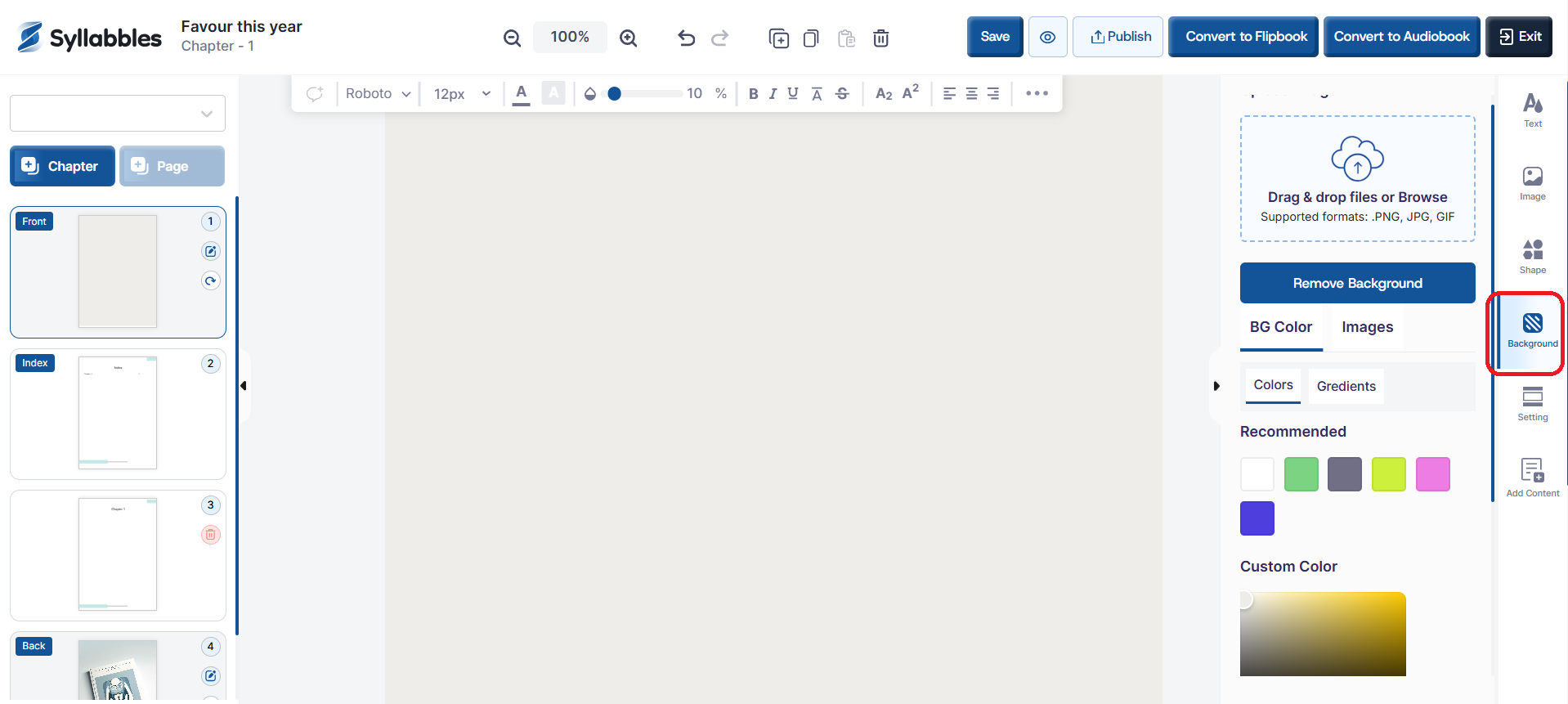
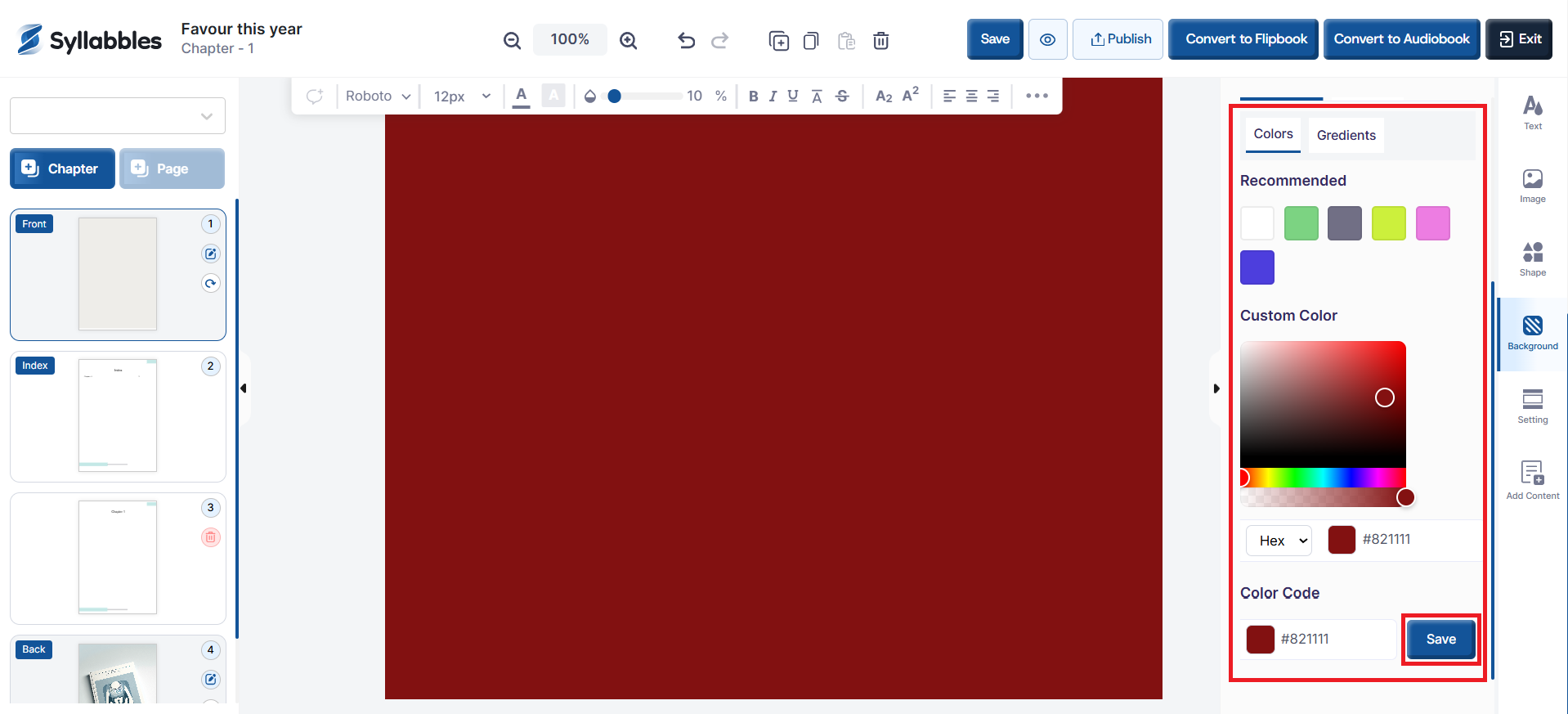
If you choose to set the BG color, you have the options of selecting the color from the available colors or customize the color by using a color code, then click on the Save button.
OR
Select the Gradients option, then choose your first and second colors to create a smooth color blend for your background.
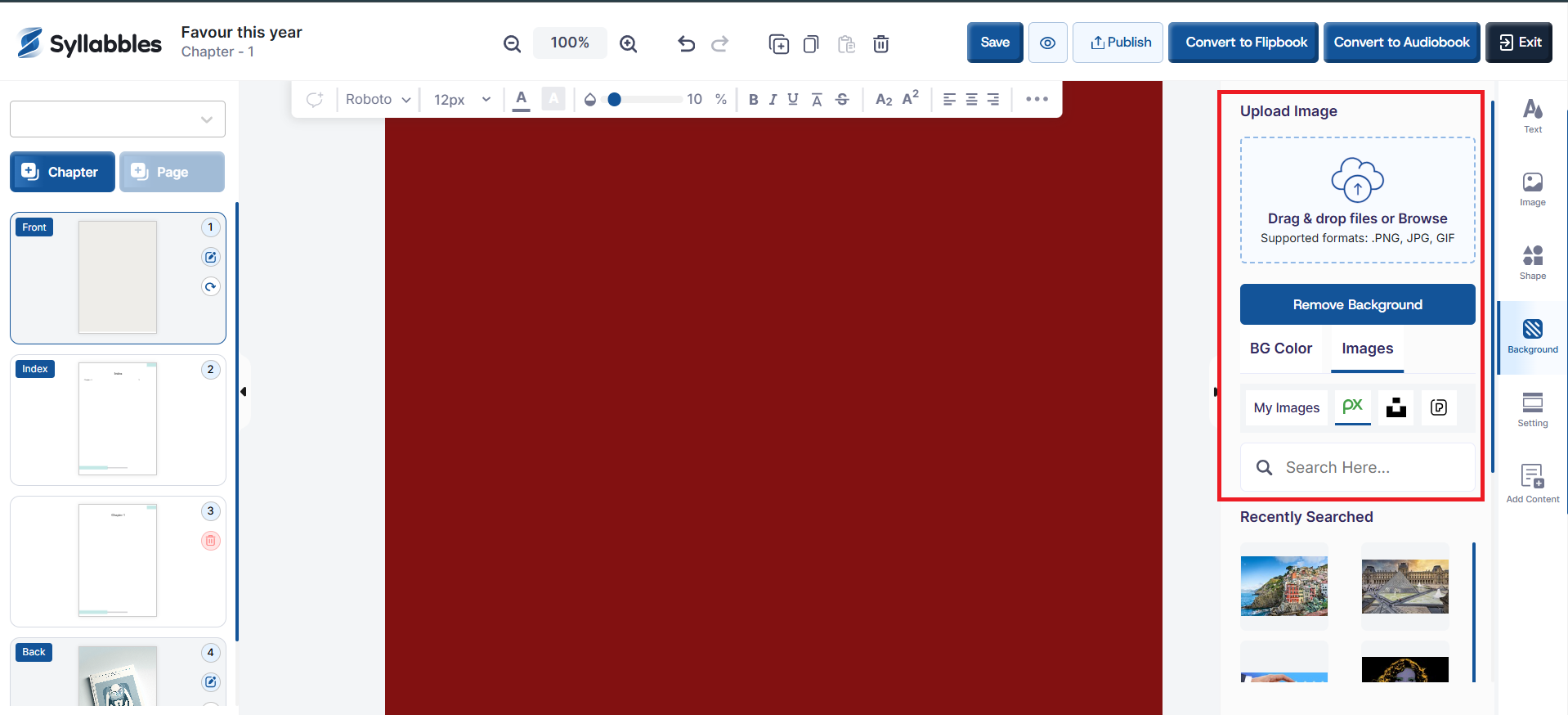
However, if you choose to add an image as your background, select the Images option.
You can upload your own images by dragging and dropping them into the upload box, or by clicking the box to access files from your device.
OR choose from free stock image sources like Pexels, Unsplash, or Pixabay (as shown by their icons).
Use the search bar to find specific images, then click on an image to insert it into your page. Then, adjust its size or position on your canvas.